How to Cut Mobile Data Usage on Android and iPhone in India: 10 Settings to Check
If your mobile data allowance runs out before the billing cycle ends, the cause may not be one long video session. Background app refresh, cloud photo uploads, automatic downloads, video autoplay and a forgotten hotspot can quietly use data throughout the day.
You do not need to disable mobile data or stop using your favourite apps. Start by identifying which apps consume the most data, then restrict the activities that do not need to happen over a mobile connection.
This guide covers practical Android and iPhone settings that can help Indian users control usage and avoid unnecessary top-ups. Menu names vary by phone brand and software version, so use the closest equivalent on your device.
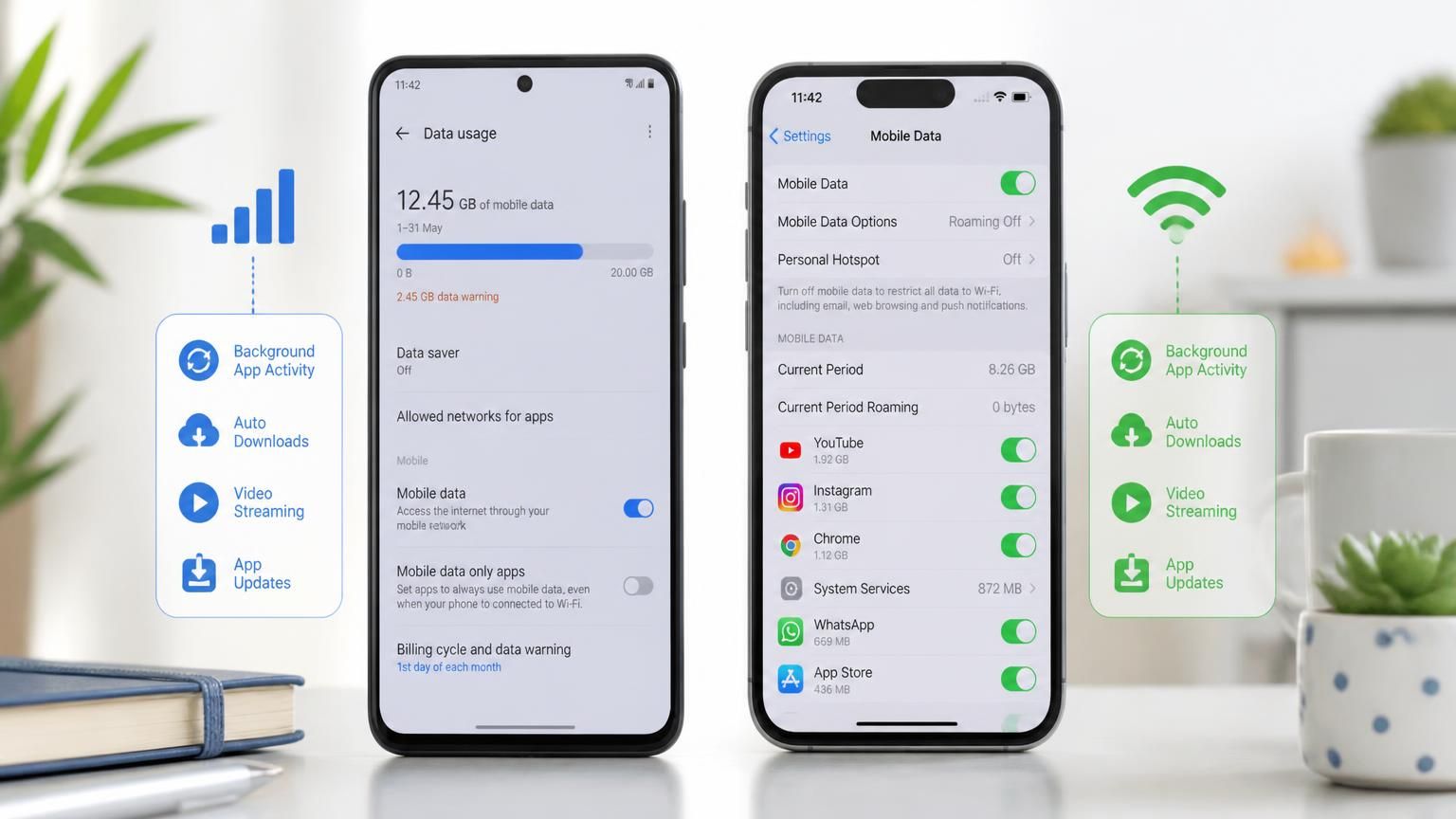
1. Find out which apps are using your data
Before changing settings, check the usage breakdown. Otherwise, you may restrict the wrong apps.
Android
On Google Pixel phones, open Settings → Network & internet → SIMs → App data usage. Select the relevant period to see how much data each app used. Other Android phones use similar menus, but the wording and location can vary.
On Samsung Galaxy devices, open Settings → Connections → Data usage → Mobile data usage. You can review app-by-app usage and access data-warning controls.
iPhone
Open Settings → Mobile Service (or Cellular, depending on region and iOS version). Scroll to the app list to see mobile-data consumption. You can switch off mobile data for individual apps that do not need it.
Important: The handset's data counter and your mobile operator's billing counter may not match exactly. Google recommends checking the carrier's own usage records for the plan's official measurement.
2. Turn on Data Saver or Low Data Mode
Both Android and iPhone include built-in settings that reduce background network activity.
| Phone | Setting path | What it generally changes |
|---|---|---|
| Android / Pixel | Settings → Network & internet → Data Saver | Restricts background mobile data for many apps |
| Samsung Galaxy | Settings → Connections → Data usage → Data saver | Limits background data for apps, with exceptions |
| iPhone | Settings → Mobile Service → Mobile Data Options → Data Mode → Low Data Mode | Reduces background activity, automatic downloads and some sync tasks |
On iPhone, Low Data Mode can be enabled separately for mobile data and individual Wi-Fi networks. Apple says apps may pause background network activity, reduce streaming quality, stop automatic downloads and pause some backups or photo updates.
Do not turn on a restrictive mode without checking essential apps. Messaging, email, navigation or work apps may need permission to use background data.
3. Set a data warning before you reach the limit
A warning gives you time to change habits before the allowance is exhausted.
On a Pixel phone, open Settings → Network & internet → SIMs → Data warning & limit. You can set a warning level and, if supported by your device and carrier configuration, a hard data limit.
Samsung Galaxy phones have a similar option under Settings → Connections → Data usage → Billing cycle and data warning.
A practical approach is to set the warning below your plan's full allowance, leaving a buffer for navigation, payments and unexpected use. Match the billing-cycle start date in the phone to the date your operator resets the plan.
iPhone users can review the usage counter in Settings, but the exact warning and reset controls may be provided by the carrier rather than iOS. Use the operator's app or account portal for the official allowance.
4. Reduce video streaming quality on mobile data
Video is often one of the largest sources of mobile-data consumption. A streaming app may automatically select a higher resolution when the connection is fast.
Look for settings such as:
- Data Saver or Save Data.
- Lower mobile streaming quality.
- Wi-Fi-only downloads.
- Disable autoplay for previews.
- Download episodes or playlists while connected to home or office Wi-Fi.
A faster 5G connection does not inherently make the same file larger. However, higher available bandwidth can allow apps to stream higher-resolution video or download more content quickly if their quality settings are automatic. Check the app's mobile-data quality setting rather than blaming the network generation alone.